> For the complete documentation index, see [llms.txt](https://docs.myshell.ai/llms.txt). Markdown versions of documentation pages are available by appending `.md` to page URLs; this page is available as [Markdown](https://docs.myshell.ai/ko/create/shellagent-mode/undefined.md).
# 에이전트 맞춤 가격 설정
Our **Customized Pricing For Your Agent** feature puts you in the driver’s seat—roll out subscriptions for your AI agents, drop one-time purchases, or flex with pay-per-use options. Your work, your rules.
**Understand The Basics**
* A paid plan bundles multiple features with one payment method.
* A feature = a stack of ShellAgent nodes (states).
* Anything not tied to a paid plan? It’s free for users—your call.
**Organize Your Features**
* Break your ShellAgent App into features. Pick what’s worth a price tag and what’s a free teaser.
**Launch Your Plan**
* Build a paid plan, link it to your chosen features, and set a price.
* Save your Agent, and boom—when users tap a premium feature, they’ll see your plan pop up, ready to onboard them.
### Step 1: Enable Monetization
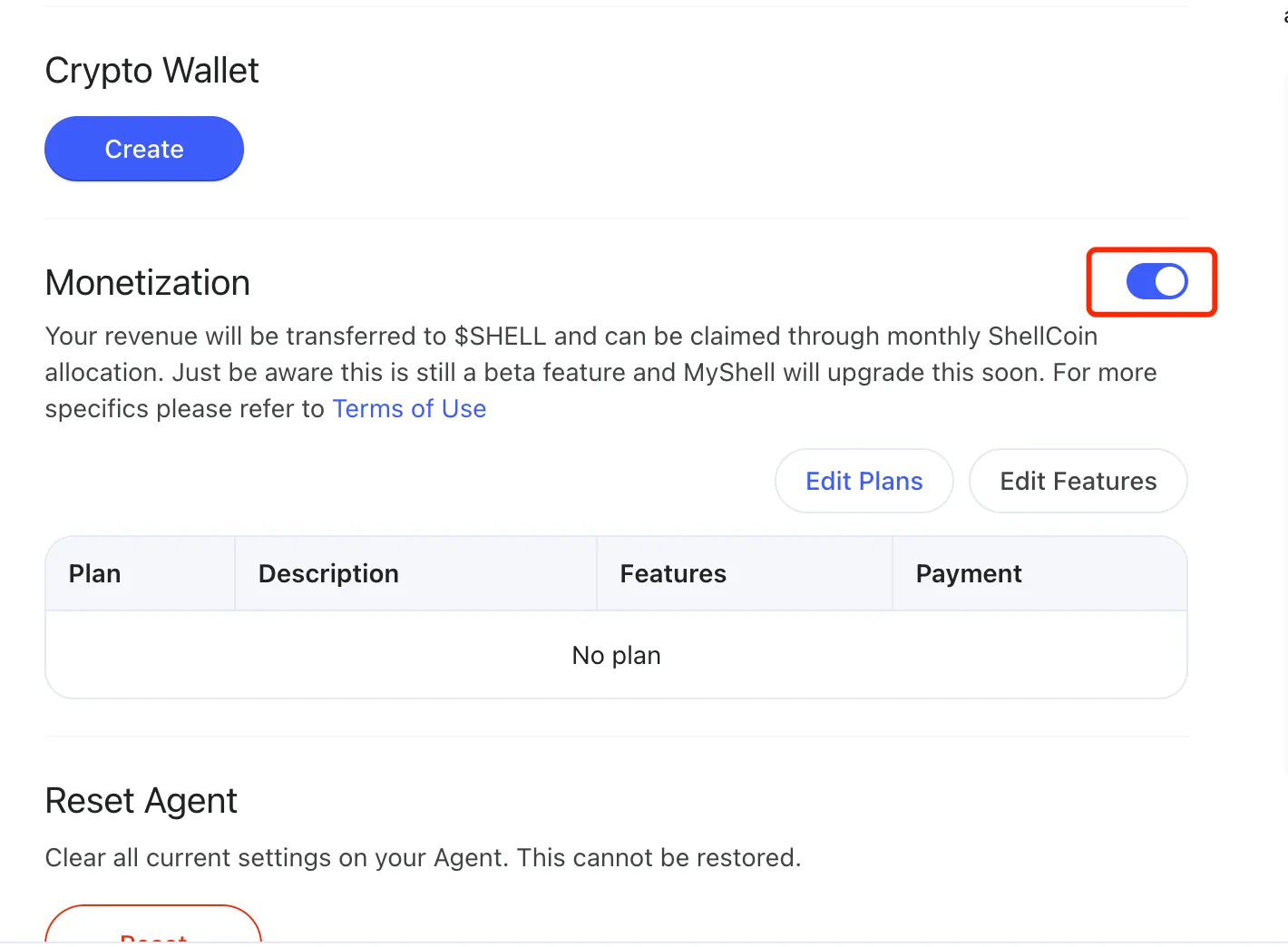
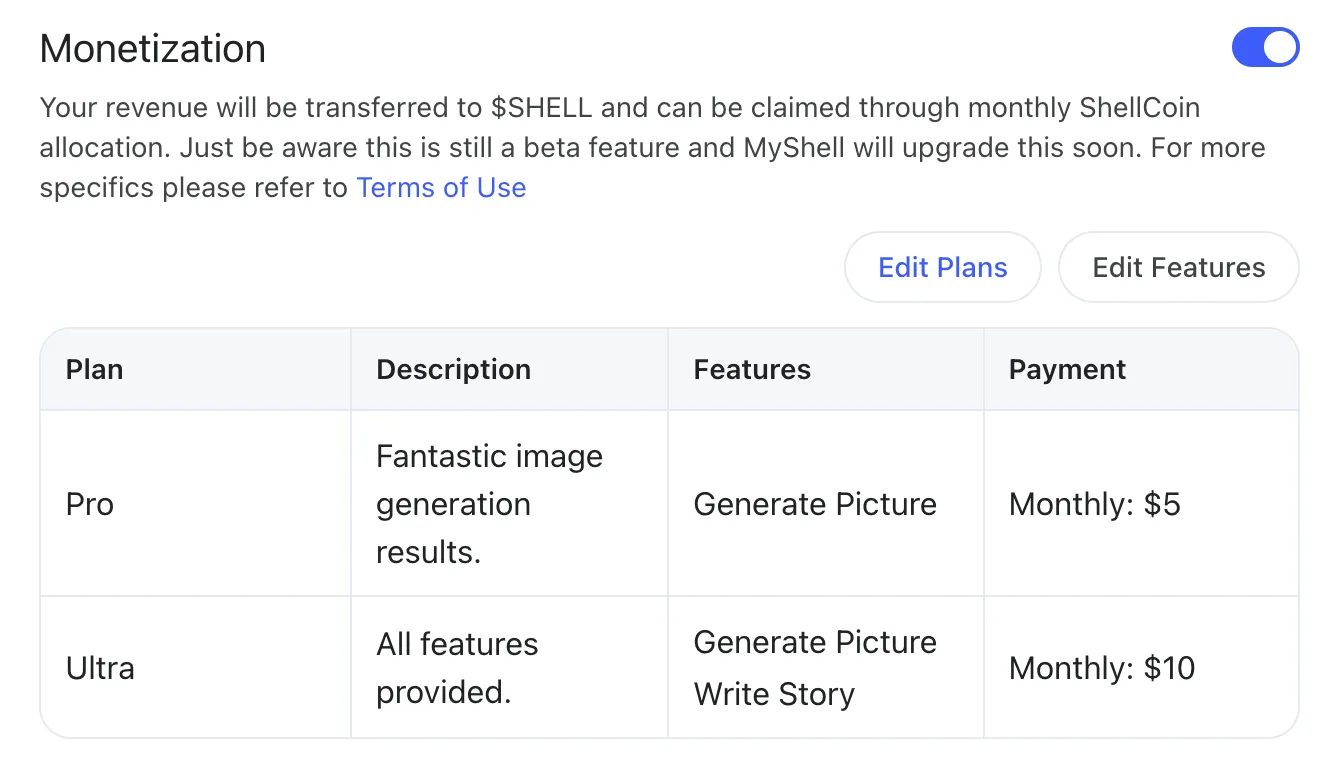
Go to your agent’s settings and toggle the **Monetization** switch to **ON**. This activates the ability to set up paid features.
### Step 2: Define Your Features
Features are the specific functionalities in your app that you want to charge for. Here’s how to set them up:
#### 2.1 Open the Features Editor
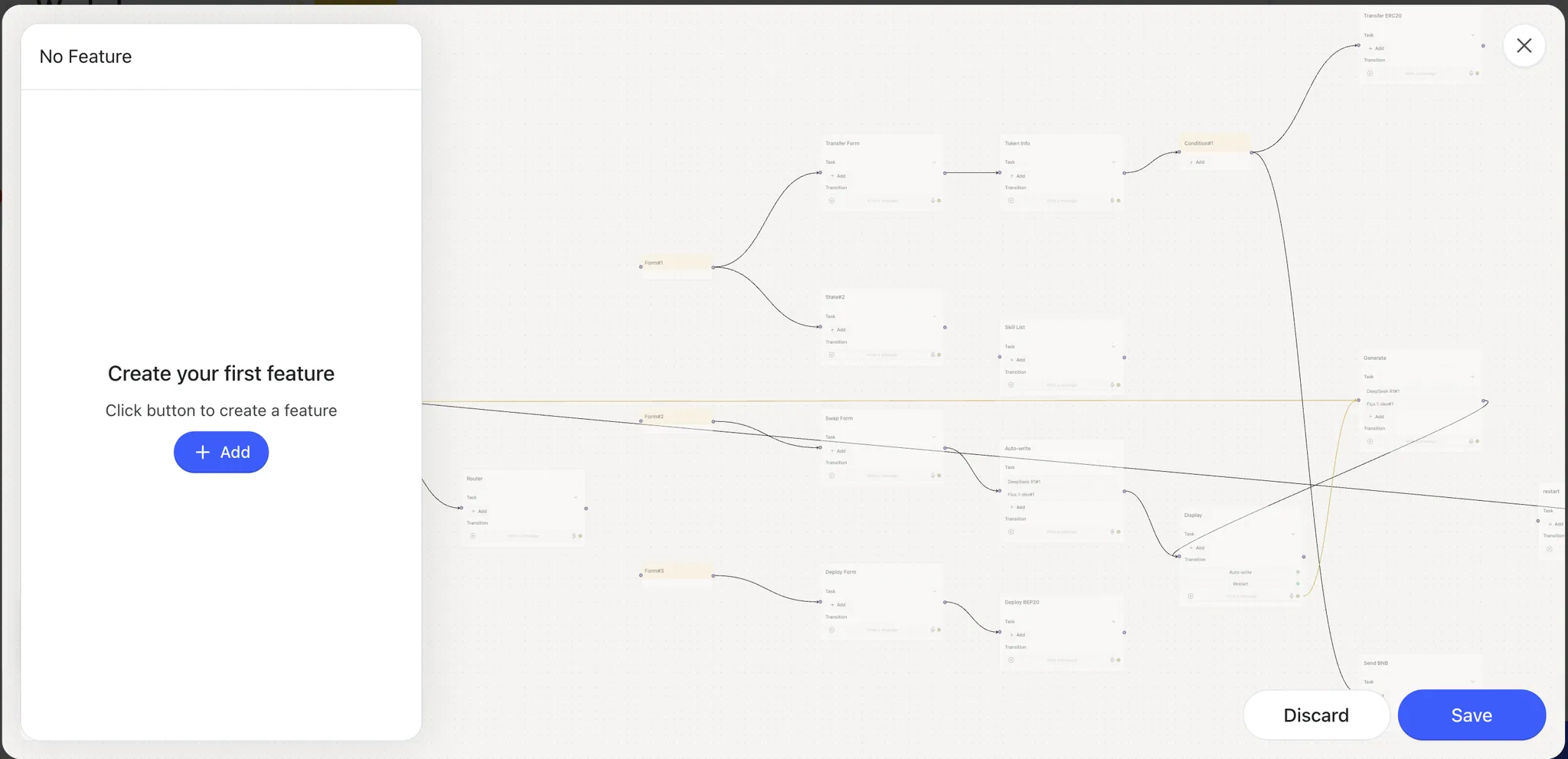
In your agent’s dashboard, click **Edit Features** to start defining what users will pay for.
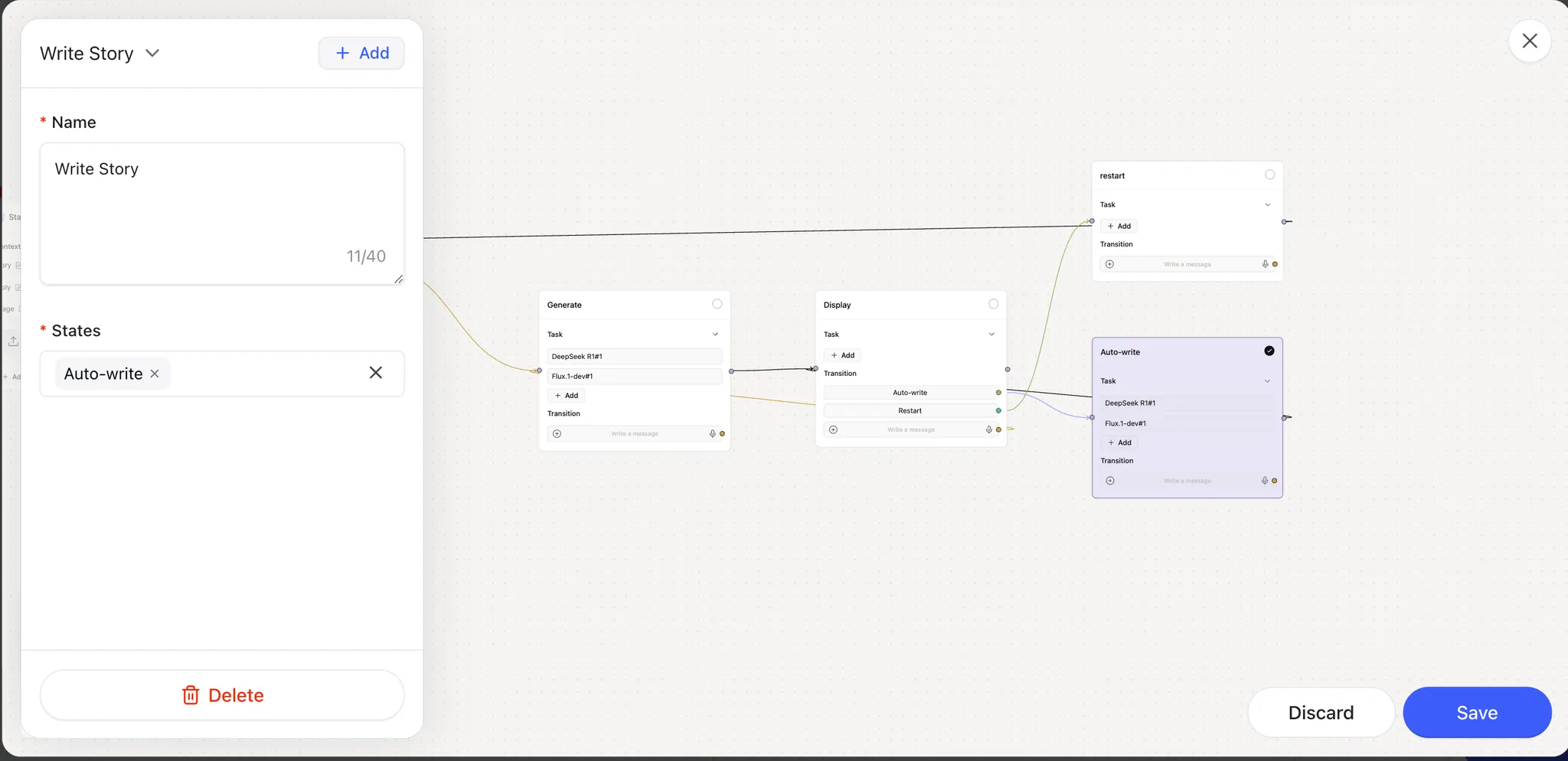
#### 2.2 Create a New Feature
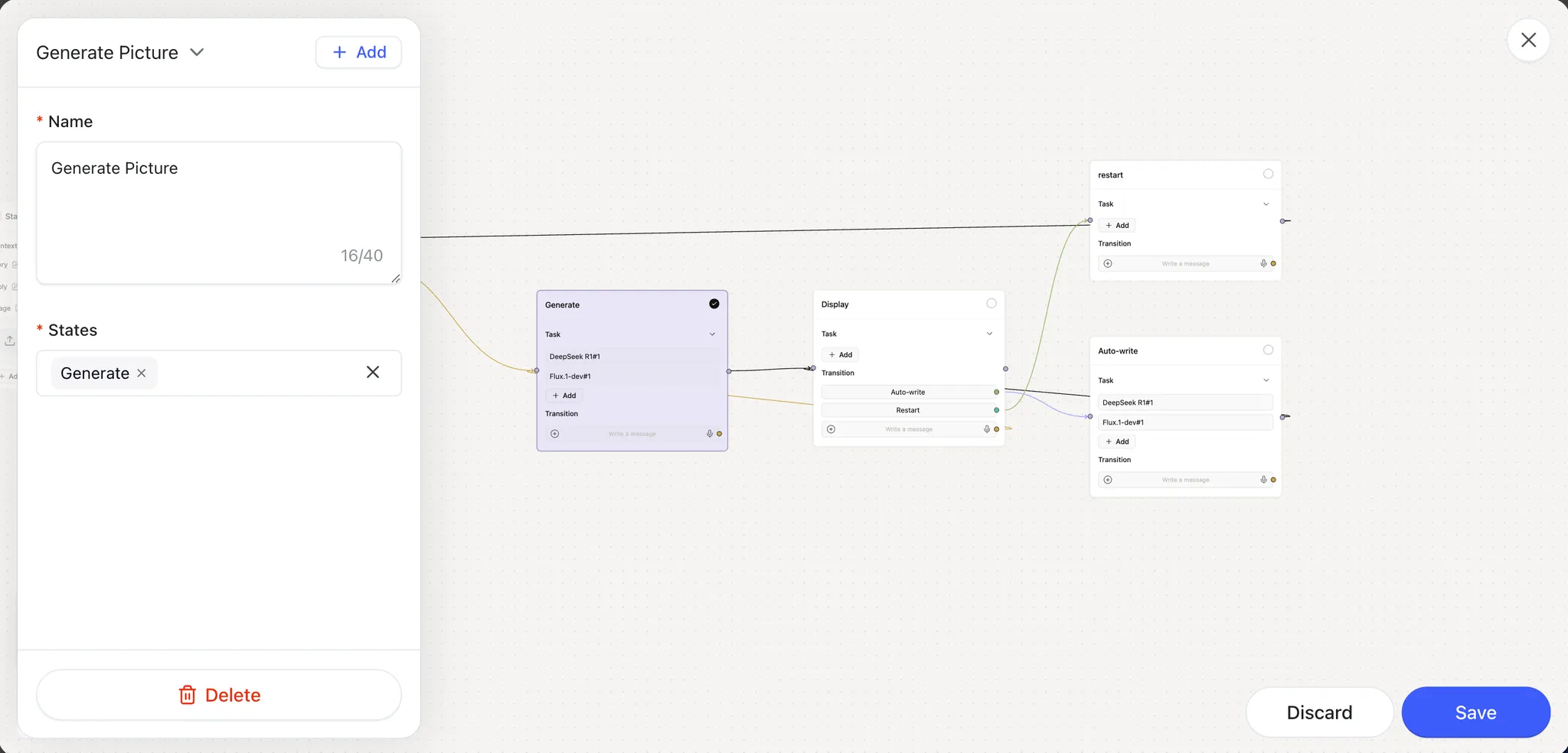
Write a clear, user-friendly description of the feature. This is what users will see, so make it simple and compelling.
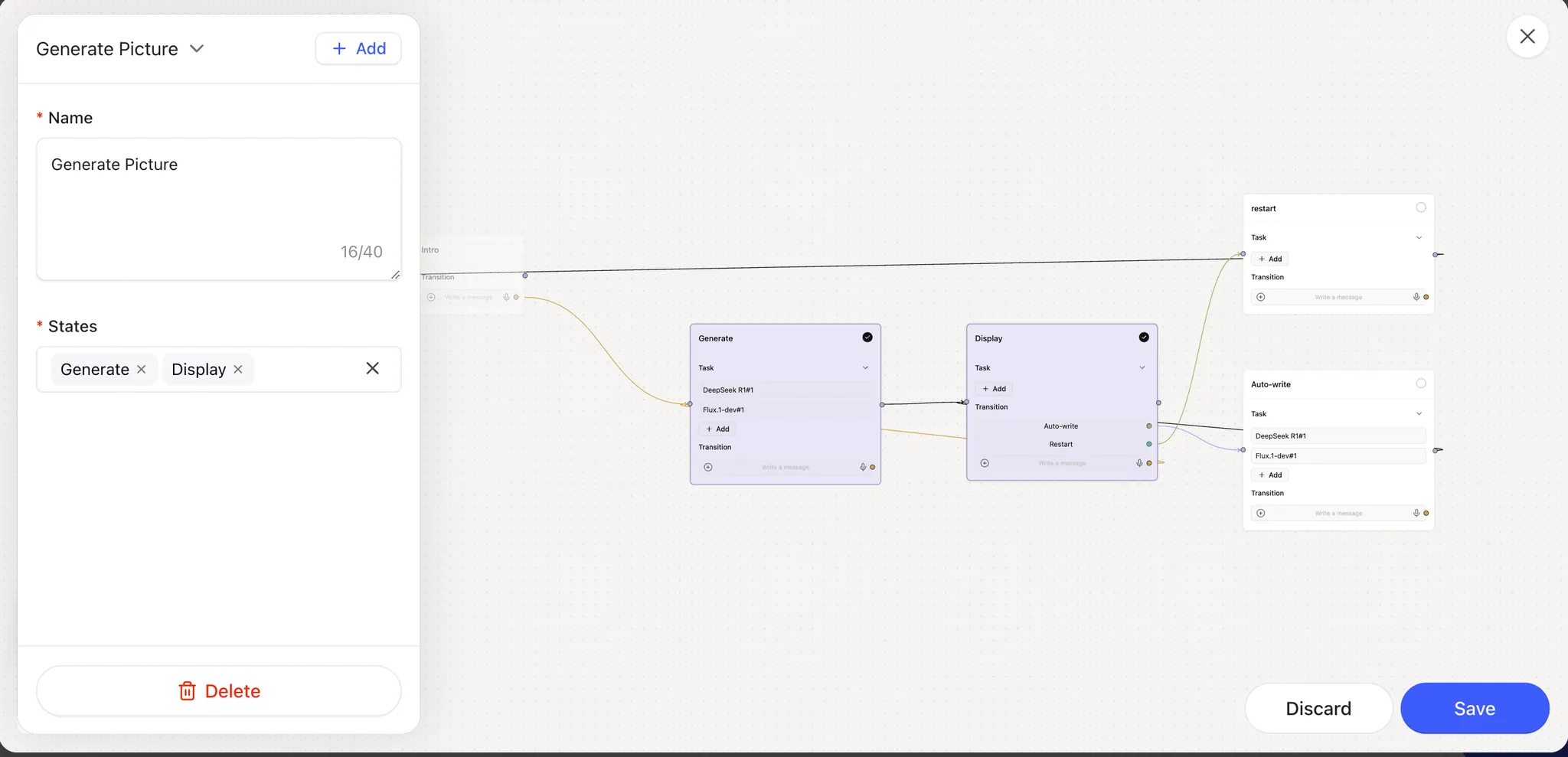
On the app canvas, select the **States** (ShellAgent nodes) that make up this feature by checking the corresponding boxes.
* **Important**: Be precise when selecting states. Missing a state or including unnecessary ones can confuse users and hurt their willingness to pay. For example, if you’re charging for a “Generate Content” feature, don’t forget to include the state that displays the generated results.
#### 2.3 Add More Features
Repeat the process to create additional features until all paid functionalities are covered.
Once done, save your changes and close the window.
### Step 3: Set Up Your Plan
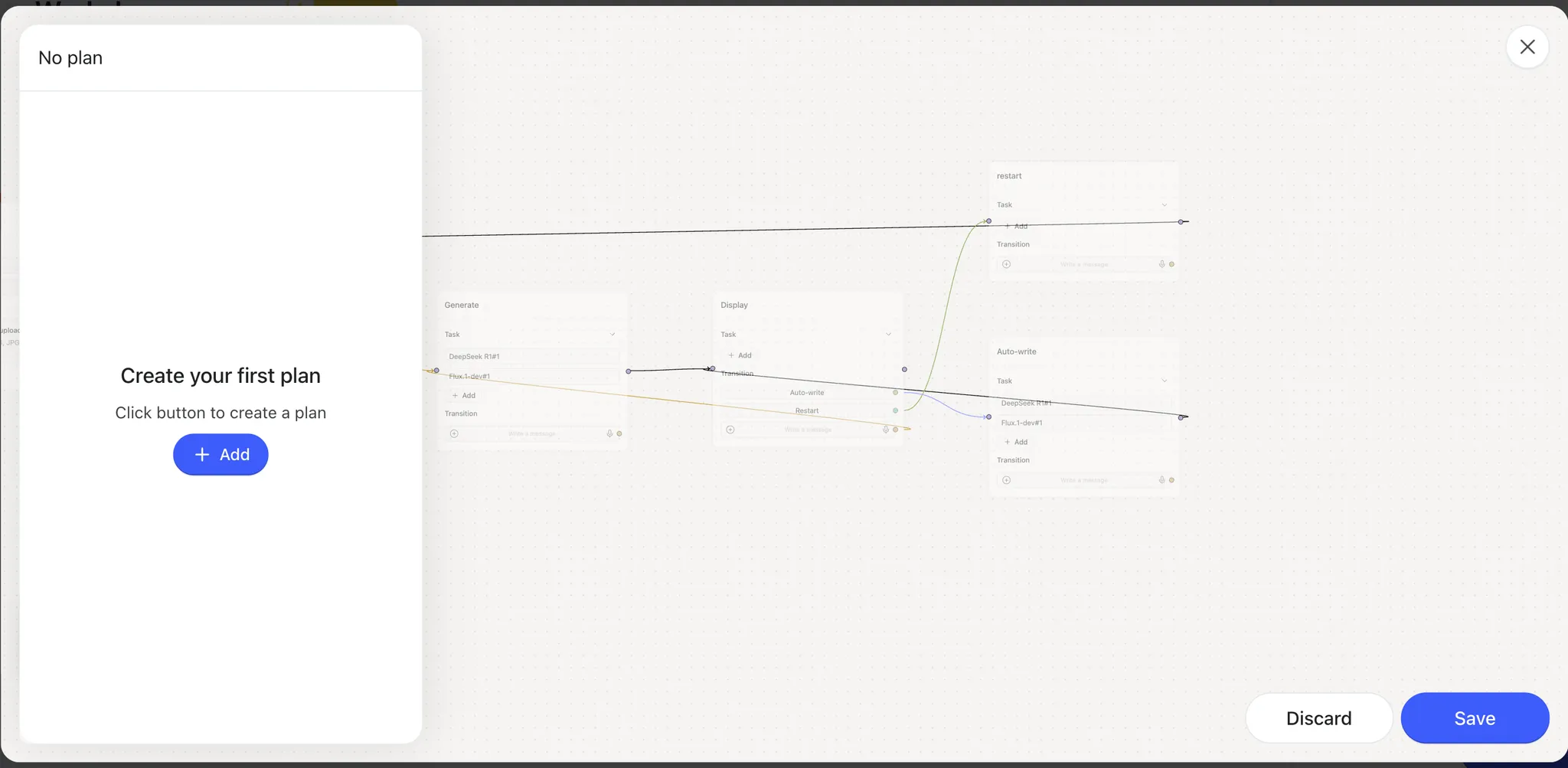
A plan bundles features together and assigns them a price. Here’s how to create one:
#### 3.1 Create a New Plan
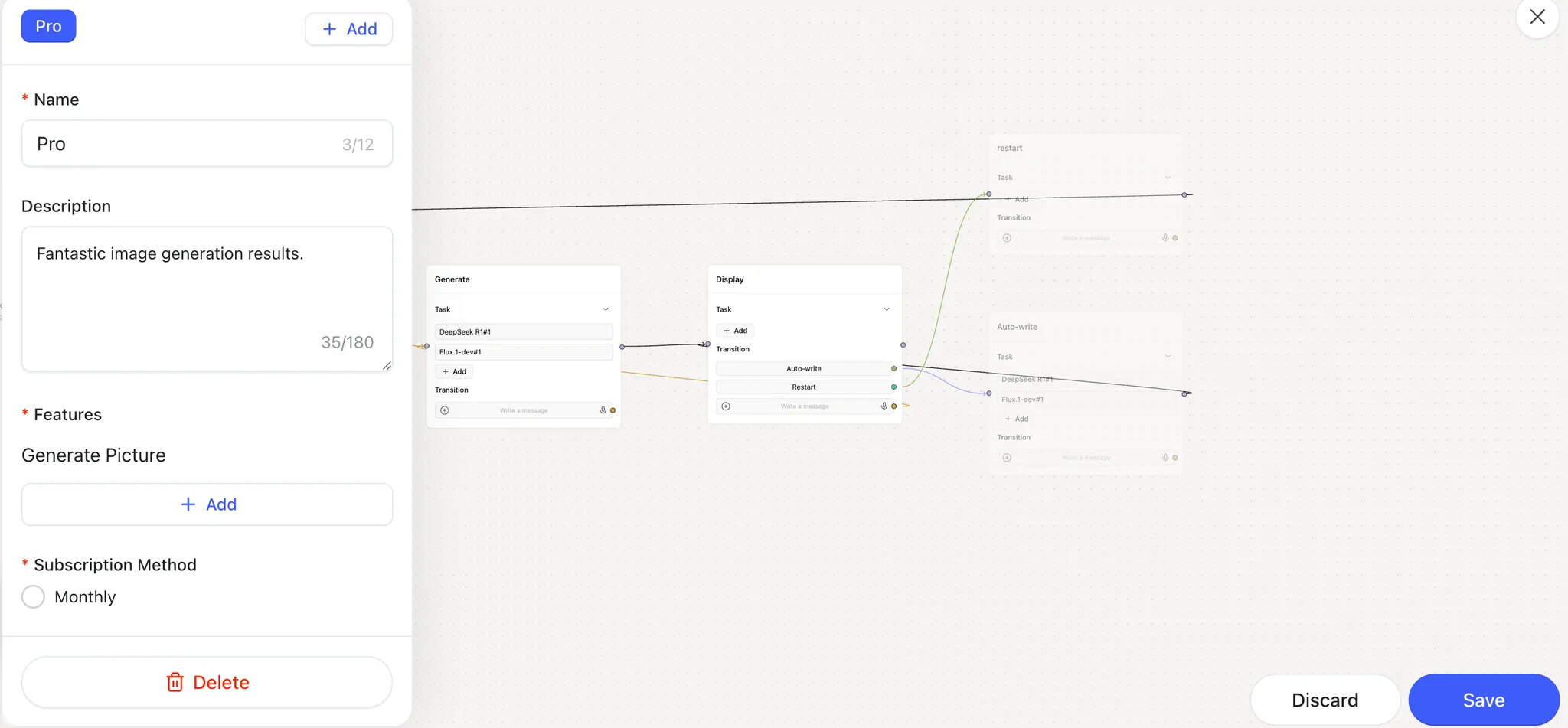
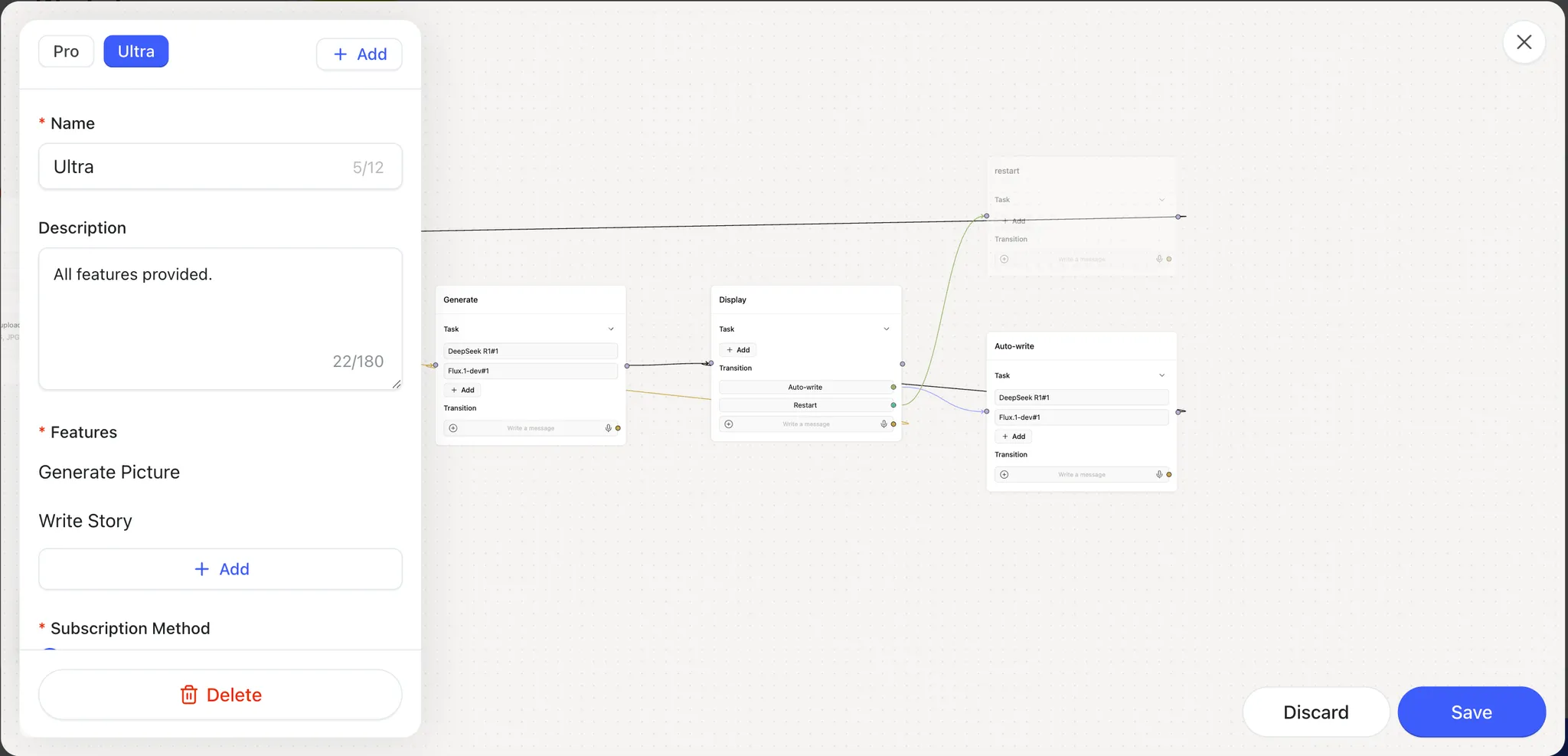
Give your plan a short, catchy name and an appealing description to entice users.
Select the **Features** you want to include in this plan. On the canvas, selected features will appear fully visible, while unselected ones will be semi-transparent.
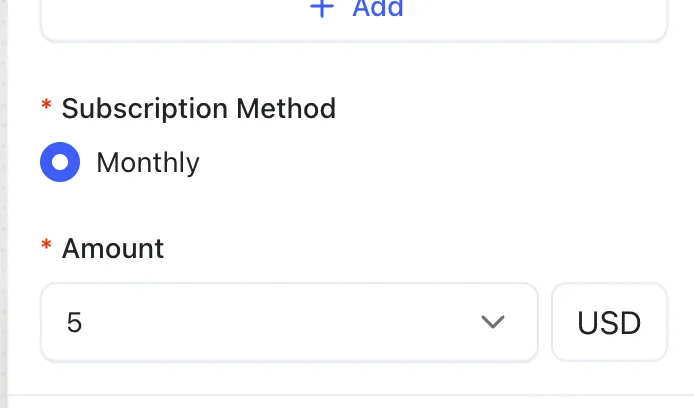
Choose a payment method. Currently, only **monthly subscriptions** are supported, and due to App Store restrictions, you can only pick from a few fixed price tiers.
#### 3.2 \[Optional] Create Additional Plans
If one plan doesn’t meet your needs, you can create multiple plans to offer different tiers or combinations of features.
#### 3.3 Review Your Setup
* Save your plan settings and close the pop-up window.
* Double-check your configuration to ensure everything looks correct.
### Step 4: Save and Activate
* Click **Save Agent Settings** to finalize your changes. Your paid plans are now live!
* When users interact with a paid feature, they’ll see your plan details and can subscribe.