> For the complete documentation index, see [llms.txt](https://docs.myshell.ai/llms.txt). Markdown versions of documentation pages are available by appending `.md` to page URLs; this page is available as [Markdown](https://docs.myshell.ai/ko/create/pro-config-mode/tools/undefined.md).
# 크롤러 위젯
In this section, we will build a webpage summarizer agent utilizing the Crawler widget in pro config. The crawler widget is used to crawl webpages and get raw content of a webpage. We can then pass on this content to LLMs like GPT-3.5 or GPT-4 to summarize it into a couple of paragraphs.
Before we build the summarizer using pro config, let’s take a look at the Crawler widget specifically.
## **Using the Crawler Widget**
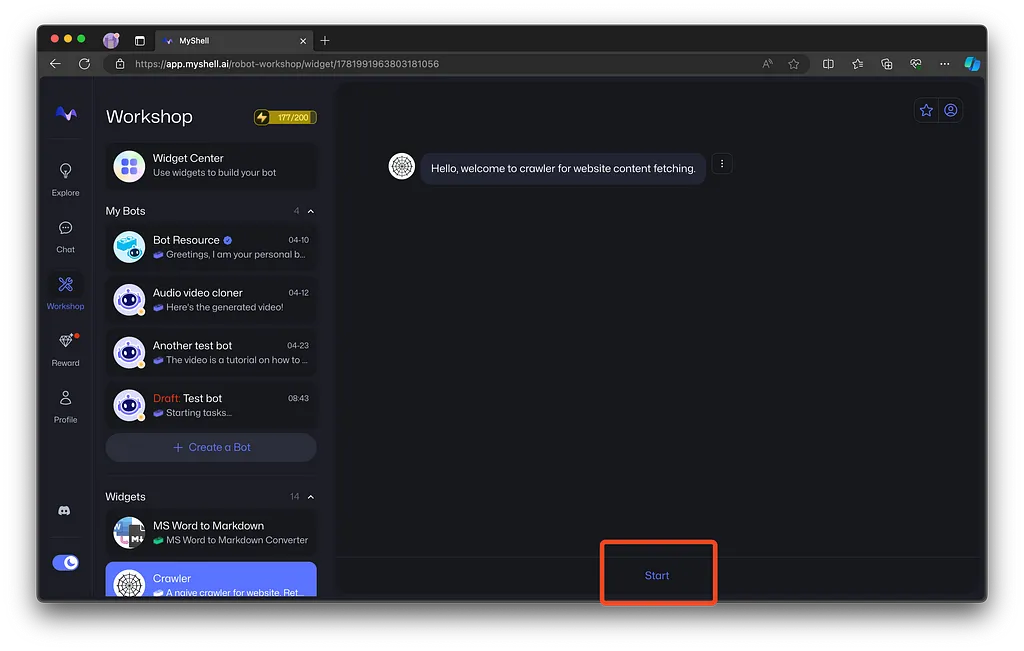
Head to the [**Crawler widget page**](https://app.myshell.ai/robot-workshop/widget/1781991963803181056) on MyShell app. You should see a screen similar to the following:
Crawler widget page on MyShell.
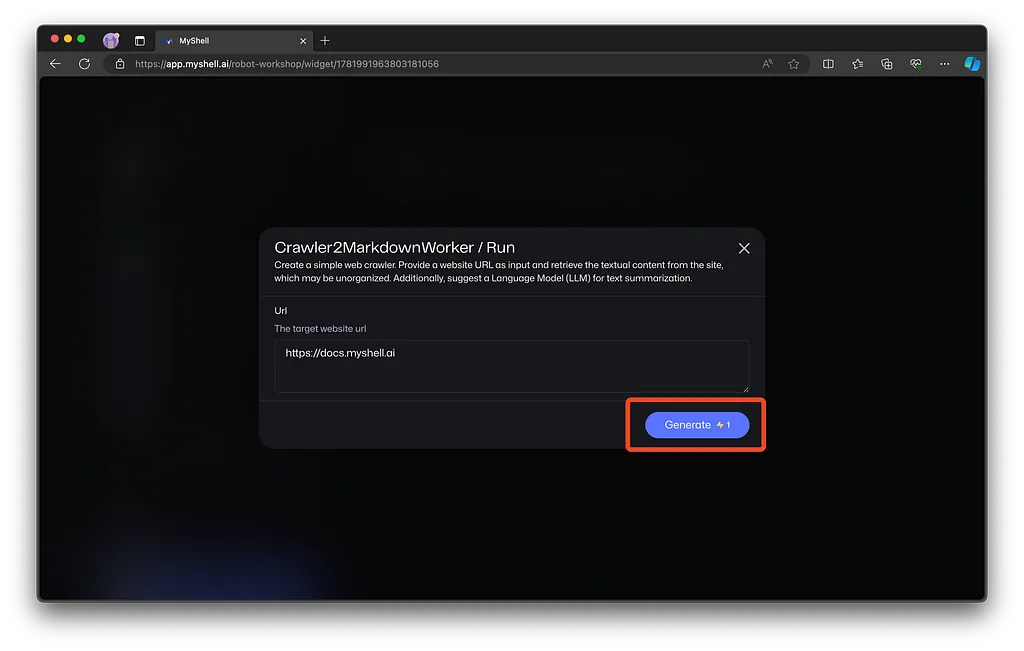
Now, click on **Start** and you should see a form similar to the following:
Input form for Crawler widget.
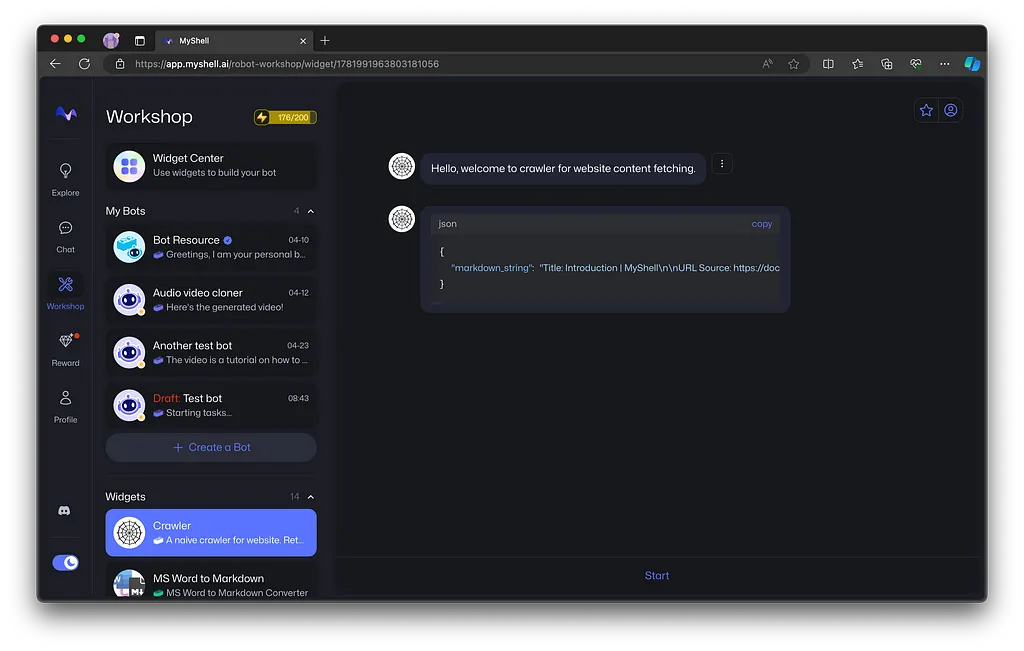
Enter an URL. For example, we have entered “[**https://docs.myshell.ai**](https://docs.myshell.ai)**”** which is MyShell documentation website homepage. Now, click on **Generate**. After a few seconds of loading, you should see a response similar to the following:
Response from the Crawler widget.
This doesn’t look pretty. Worry not! We just wanted to show you how the response of the Crawler widget looks like. Looking at it, it’s a JSON with a markdown\_string property with the content and other details of the webpage. It’s always a good practice to see how a widget responds before using it in pro config.
Now, let’s use this widget in pro config and use an LLM to summarize this JSON for us.
## **Using Crawler widget in Pro Config**
The usage for this widget in pro config is quite simple, as the only input for this widget is the URL, so the module configuration for using this widget should look like this:
```json
{
"widget_id": "1781991963803181056",
"url": "<url_goes_here>",
"output_name": "<variable_name_goes_here>"
}
```
Now, let's use this configuration in a pro config boilerplate:
```json
{
"type": "automata",
"id": "web-page-summarizer",
"initial": "homepage",
"properties": {
"cache": true
},
"states": {
"homepage": {
"inputs": {
"url": {
"type": "text",
"user_input": true
}
},
"tasks": [
{
"name": "crawl_website",
"module_type": "AnyWidgetModule",
"module_config": {
"widget_id": "1781991963803181056",
"url": "{{ url }}",
"output_name": "crawled_content"
}
},
{
"name": "summarize_crawled_website",
"module_type": "AnyWidgetModule",
"module_config": {
"widget_id": "1744214047475109888",
"system_prompt": "Provided is a crawled webpage, provide the user with the summary of the content of the webpage. Avoid mentioning about HTML specific things and stick to content summaries.",
"user_prompt": "{{ JSON.stringify(crawled_content) }}",
"output_name": "summary"
}
}
],
"render": {
"text": "{{ summary }}",
"buttons": [
{
"content": "Summarize another page",
"on_click": "go_to_homepage"
}
]
},
"transitions": {
"go_to_homepage": "homepage"
}
}
}
}
```
In the above code, we are doing the following:
* We are using cache mode during testing, this is helpful for debugging. If you want to learn more, check the [**cache mode page in documentation**](https://myshell-wiki.gitbook.io/proconfig-tutorial/tools/cache-mode).
* Asking the user for an URL to crawl using an input prompt.
* Initializing the tasks, first being crawling the URL provided using the Crawler widget (widget ID: 1781991963803181056) and saving the object received as response in a variable called crawled\_content.
* We are then converting this crawled\_content object to a JSON string and passing it as a user prompt to GPT-4 widget (widget ID: 1744214047475109888) and asking it to summarize the webpage for us. We are saving the output from GPT-4 in summary.
* We are outputting the summary as a chat message through render.
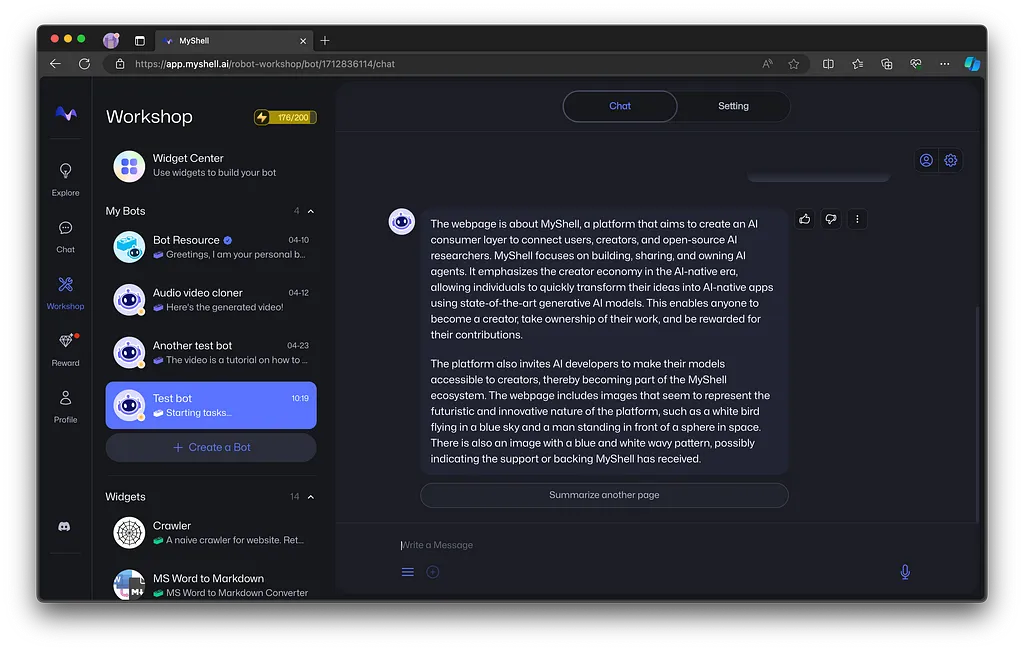
Now, if you run the pro config and pass an URL, you should see a proper summary for the URL provided (in this case, the URL provided is “[**https://docs.myshell.ai**](https://docs.myshell.ai)**”**):
Response from the webpage summarizer agent.
Of course, you can play around with different LLMs and optimize how they work to get better results that match your expectations. This tutorial aimed to help you get to the finish line, feel free to add levels of complexity to this agent and make the ideal webpage summarizer!
## **Conclusion**
Crawler widget is a very powerful widget that allows you to access external data and process it in your pro config.