> For the complete documentation index, see [llms.txt](https://docs.myshell.ai/llms.txt). Markdown versions of documentation pages are available by appending `.md` to page URLs; this page is available as [Markdown](https://docs.myshell.ai/ko/create/pro-config-mode/tools/knowledge-base-bot.md).
# 지식 베이스 에이전트
Use [Knowledge Base Agent](https://app.myshell.ai/bot/n6jmQn/309) to manage knowledge bases with domain-specific data or to handle different opinions.
### Guide
#### Get Started
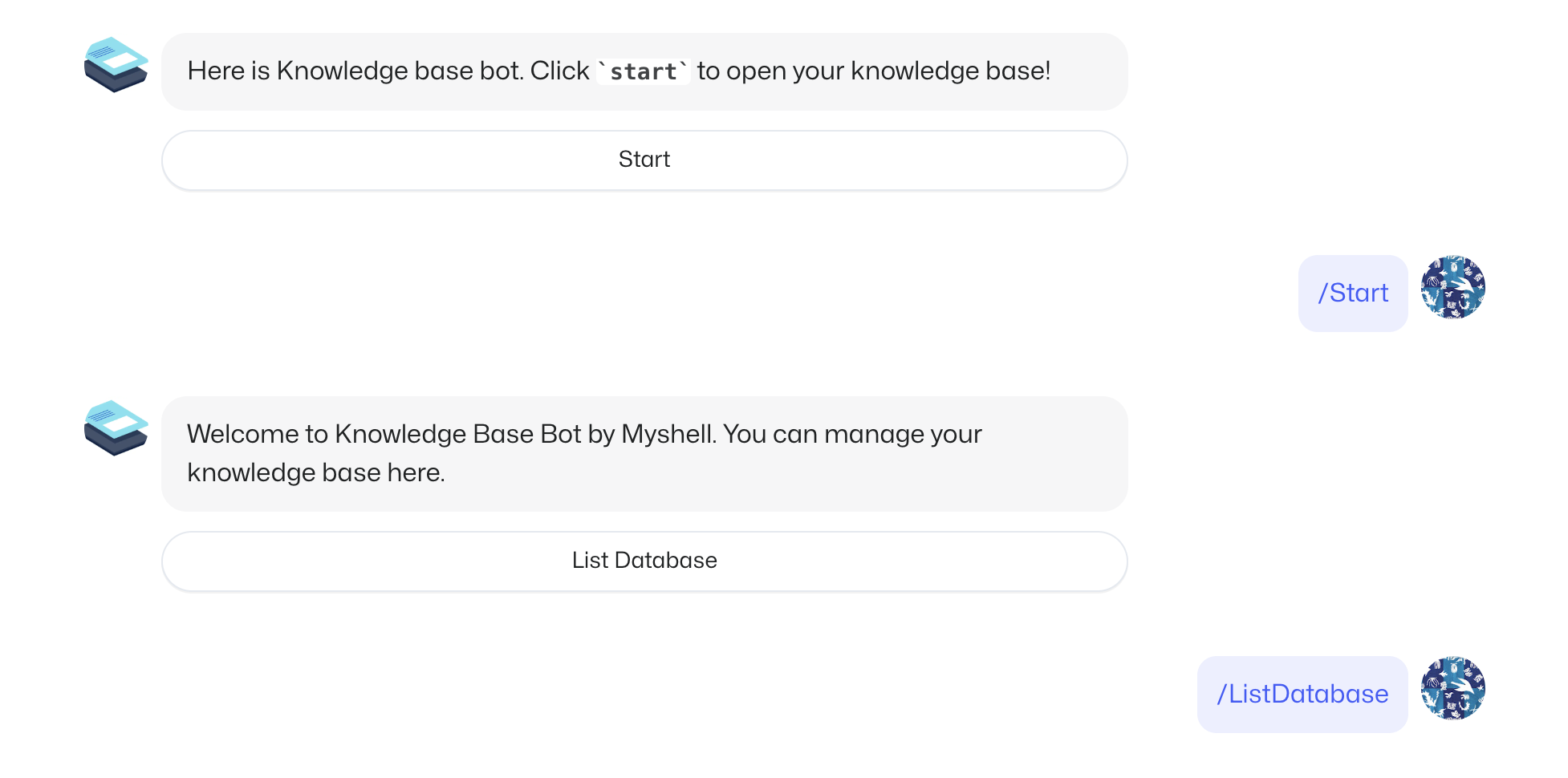
List knowledge bases
#### Create New Knowledge Base
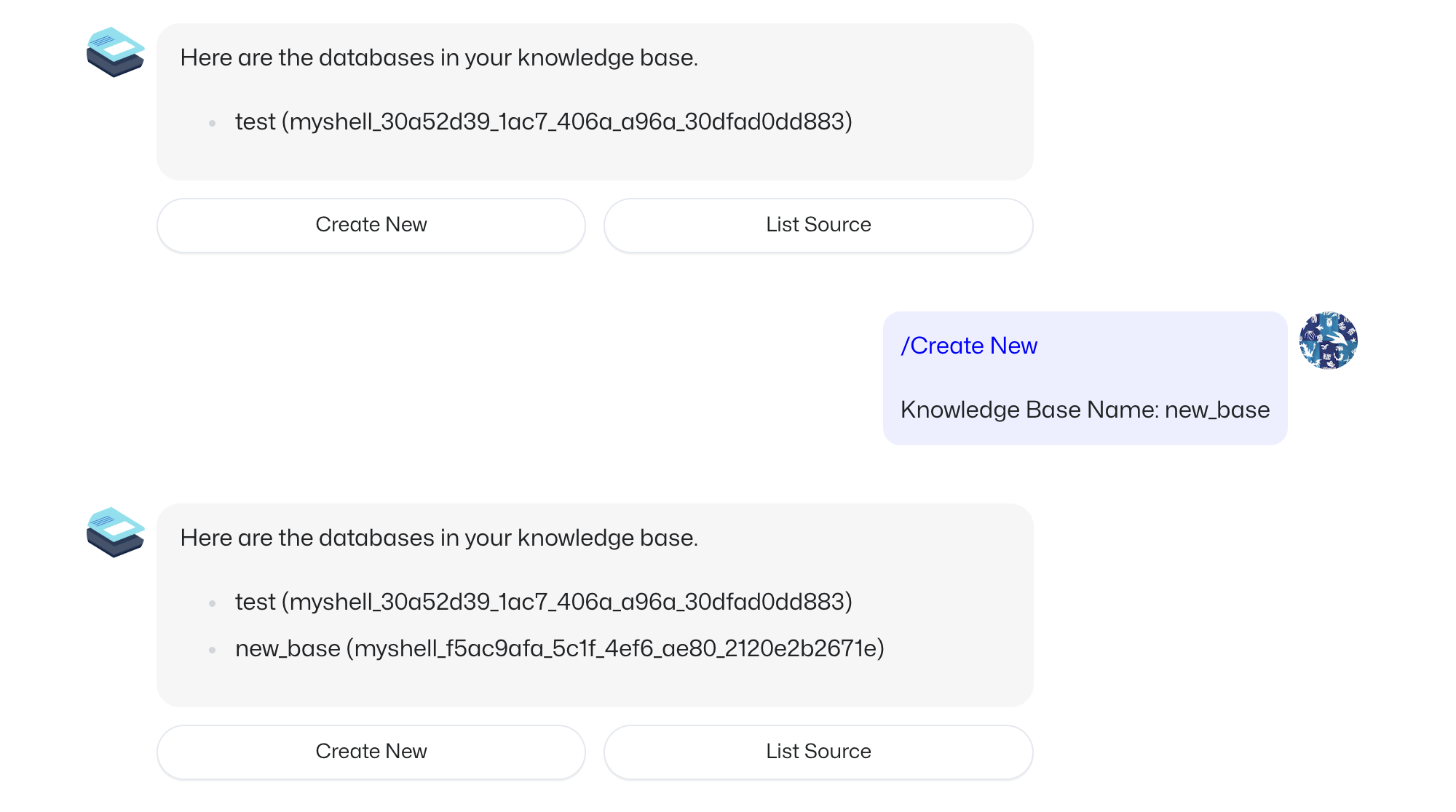
A meaningful name is helpful for your bases. After creation, the agent will display your current knowledge bases including their names and tokens.
The token (for example, `myshell_f5ac9afa_5c1f_4ef6_ae80_2120e2b2671e` in the picture below) will be used in the [LLM Widget](/ko/create/pro-config-mode/api-reference/module/anywidget-module/llm-widget.md#config)' `knowledge_base_token` field.
Create Base
#### List Source and Add Source
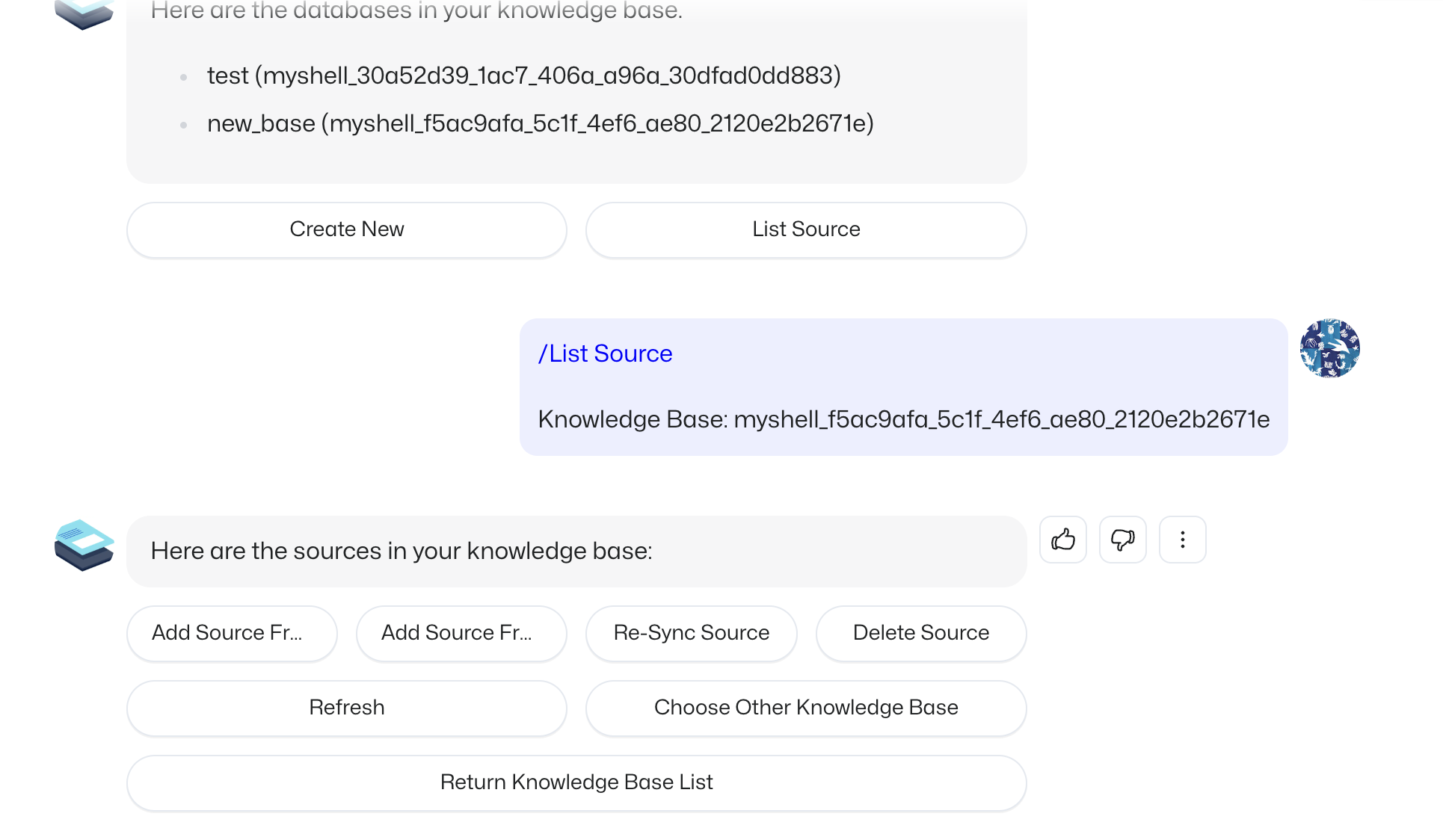
To modify sources of the new knowledge base, `List Source` button will guide to a detailed operation panel. Currently we support:
* Add Gitbook links as sources
* Upload files as sources
* Re-sync link sources
* Delete sources
List Source
#### Upload File as Source
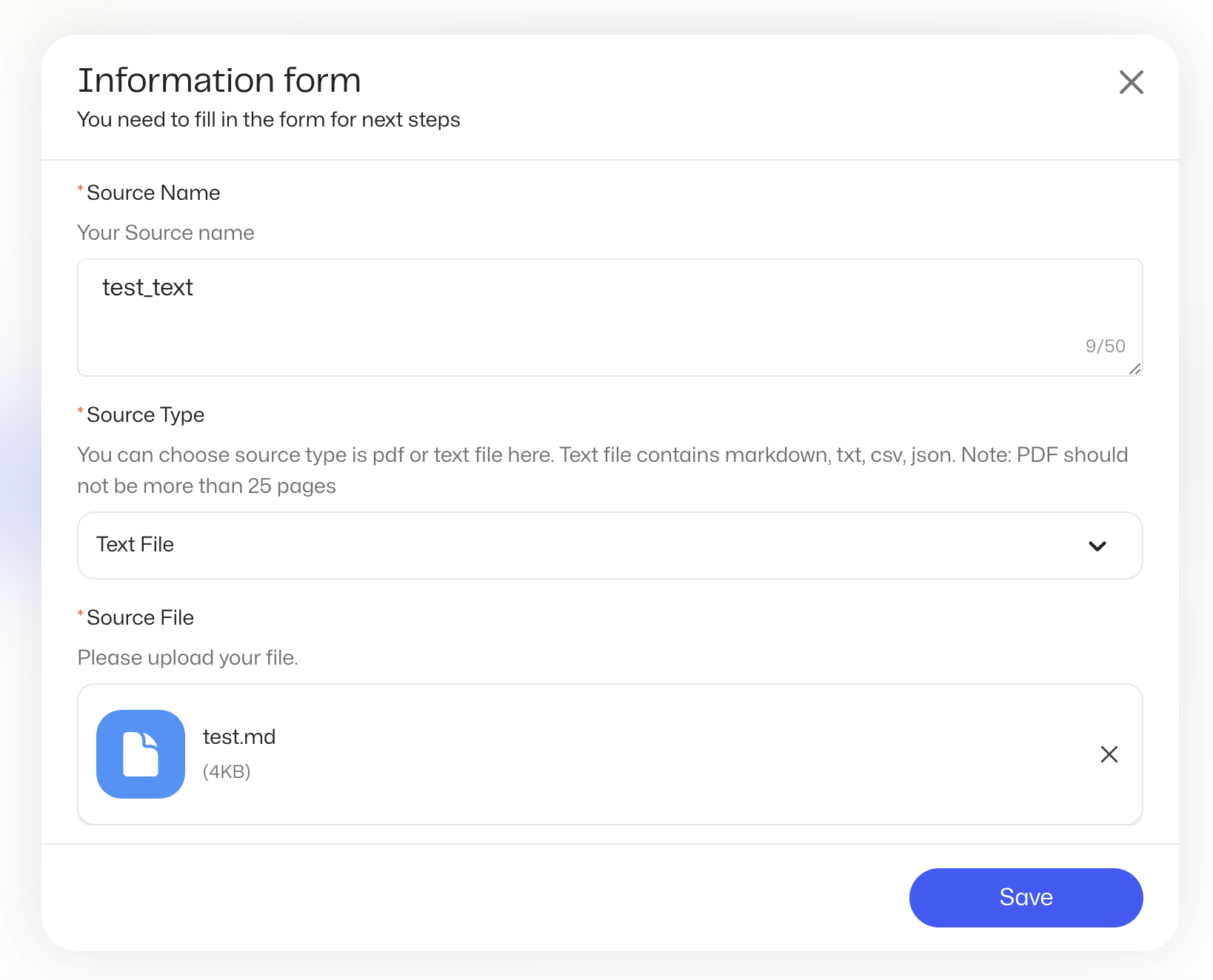
You can upload text files or PDF files as sources. Text files include md, txt, csv and json.
{% hint style="info" %}
Other text file types can be converted to supported types. Widgets like [MS Word to Markdown](https://app.myshell.ai/widget/jQBbEv) might be helpful.
{% endhint %}
Upload text file
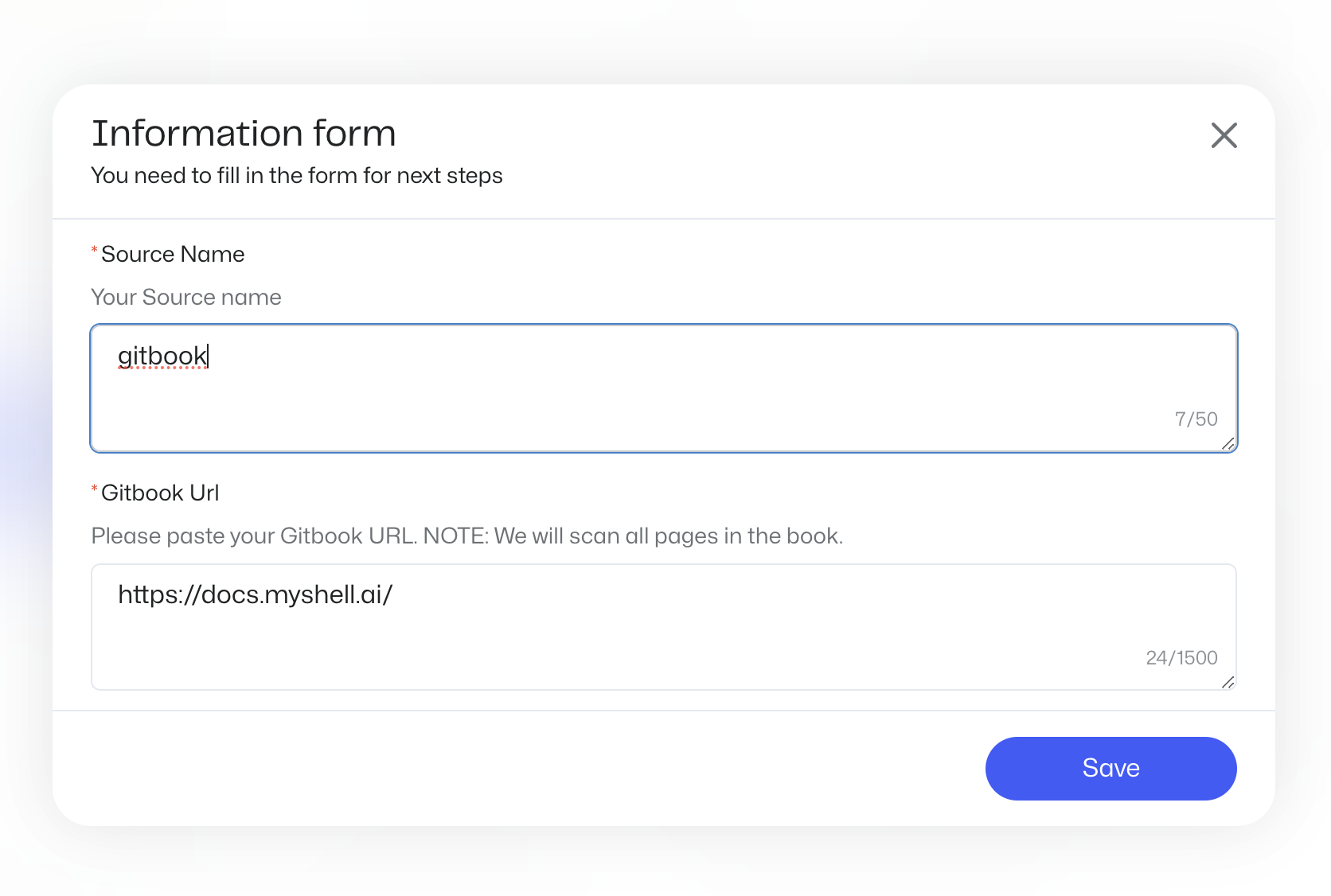
#### Add Gitbook Link as Source
Currently we only support Gitbook web pages as knowledge base sources. For Gitbook links, we will fetch the target page and all its subpages.
{% hint style="info" %}
If the page is updated, you can click `Re-Sync Source` button to update the source.
{% endhint %}
Gitbook Link
#### Refresh after Processing
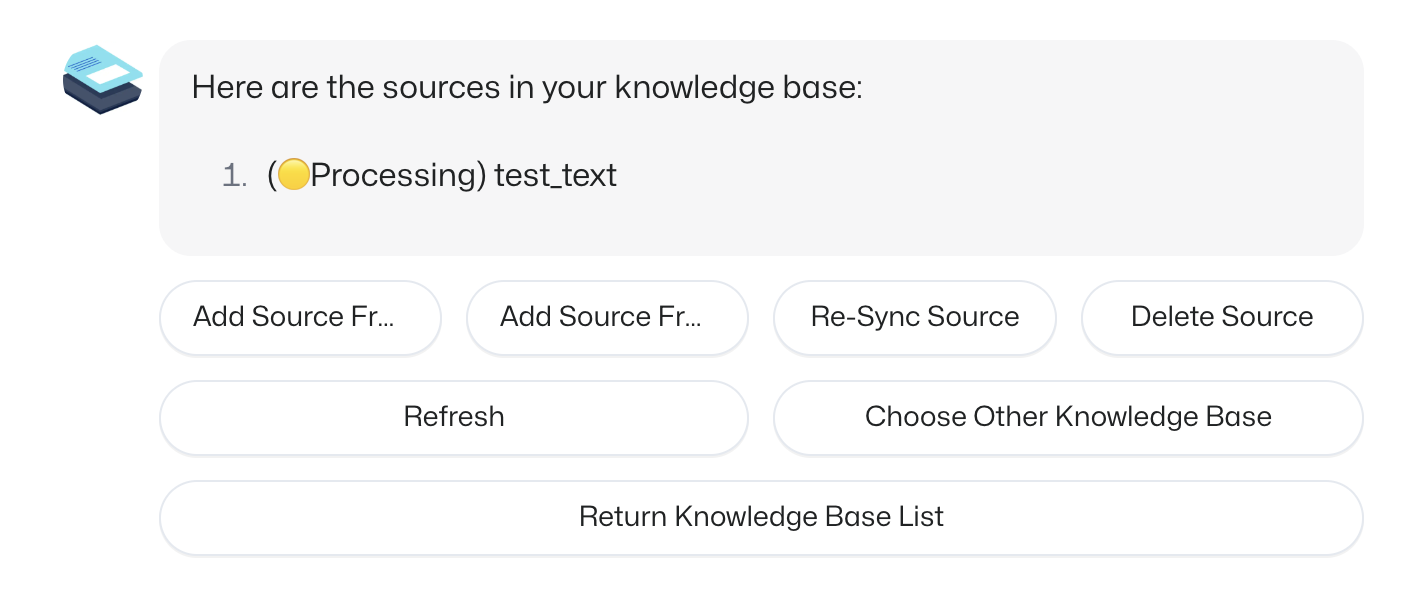
After adding a source, the agent will tell you that it is being processed.
Processing
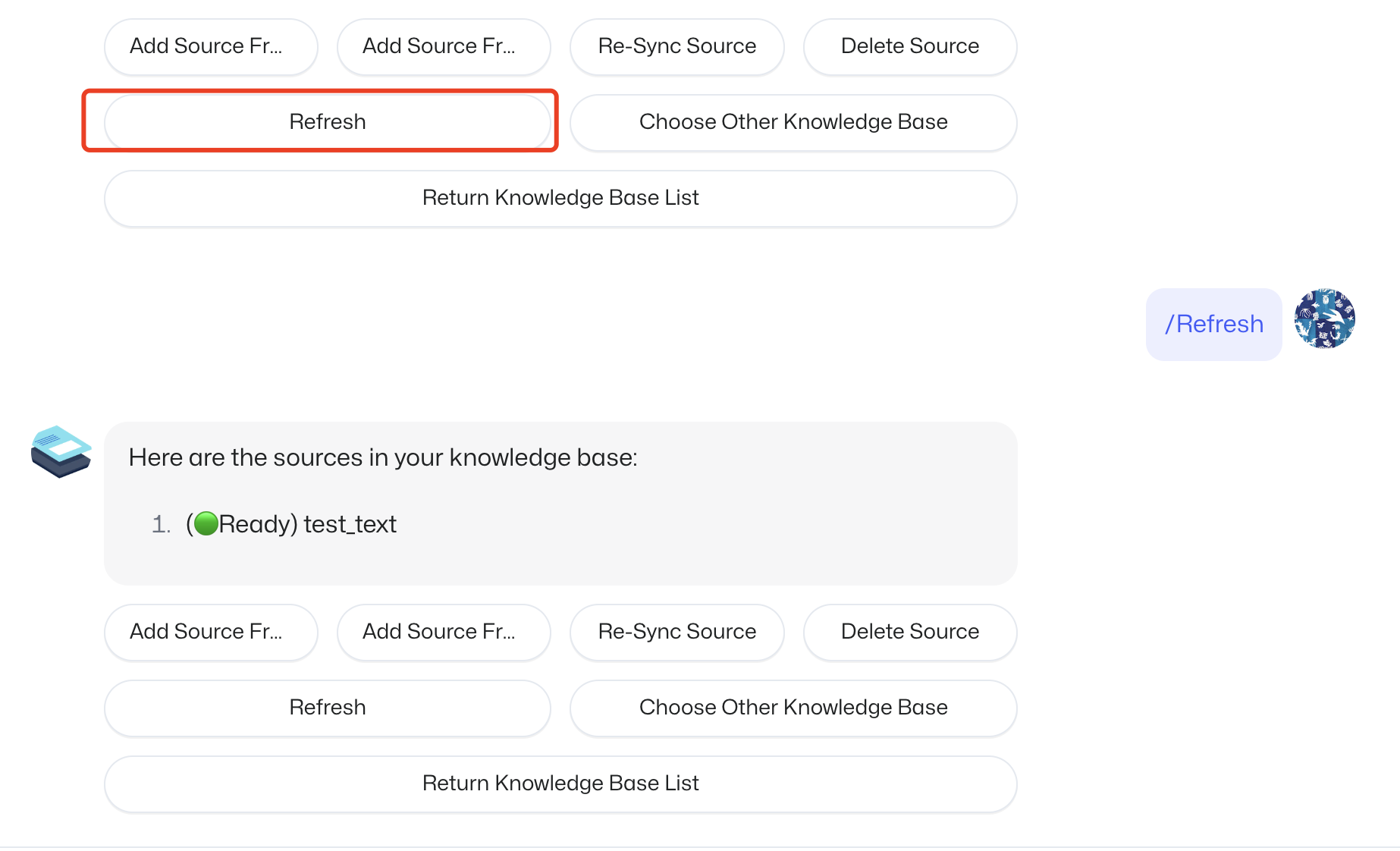
You can refresh to see if it's ready to use.
Refresh
#### Use in Widgets
When sources are ready, you can copy the knowledge base's token and configure the LLM widget. Note the `"knowledge_base_token"` field in the widget config.
```json
{
"id": "llm_widget_template",
"initial": "home_state",
"states": {
"home_state": {
"inputs": {
"input_message": {
"type": "IM",
"user_input": true
}
},
"tasks": [
{
"name": "llm_widget_example_task",
"module_type": "AnyWidgetModule",
"module_config": {
"widget_id": "1744214047475109888",
"user_prompt": "{{input_message}}", // the text inputted into prompt widget, you can get it from user input or upper state
"system_prompt": "Act as ...", // Optional field. You can input system prompt of agent.
"top_p": 0.5, // Optional field. Default value is 0.5
"temperature": 0.5, // Optional field. Default value is 0.5
"frequency_penalty": 0, // Optional field. Default value is 0
"presence_penalty": 0, // Optional field. Default value is 0
"knowledge_base_token": "", // Your token here
"output_name": "result"
}
}
],
"render": {
"text": "{{result}}", // it's a string produced by prompt widget.
"buttons": [
{
"content": "Chat Again",
"description": "",
"on_click": "rerun"
}
]
},
"transitions": {
"rerun": "home_state",
"CHAT": "home_state"
}
}
}
}
```